Get Involved
Membership How-To
Rail Passengers Membership "How-To" Page
Click the links below to jump directly to that section:
- Updating Contact Information
- Changing Username
- Location of Membership Type and CharityEngine Membership Number
- Adding Rail Passengers Number to your Amtrak Account
-----
Updating Contact Information
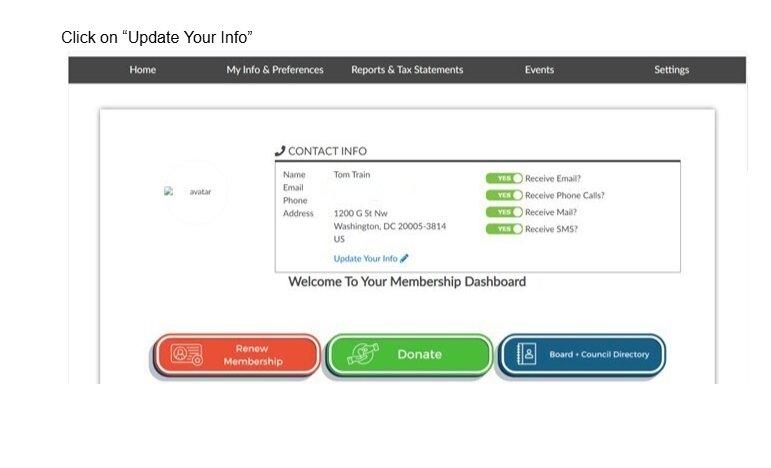
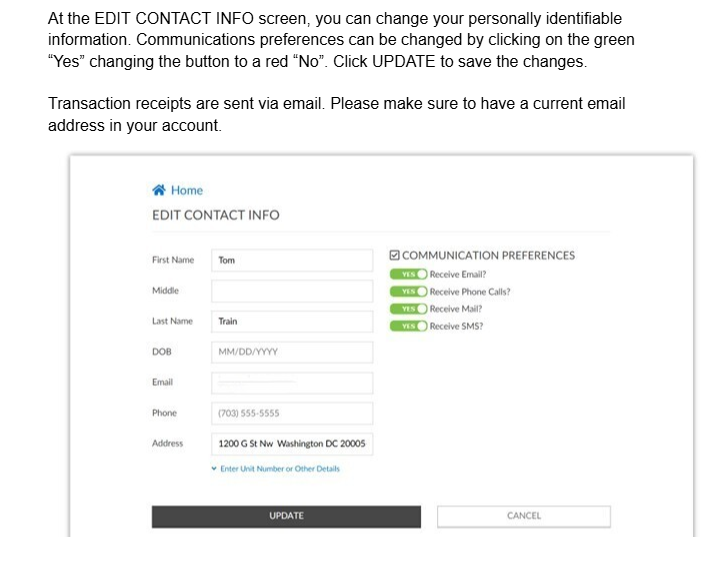
When you log in to the User Center, you can update your email, telephone number, address and communication preferences.
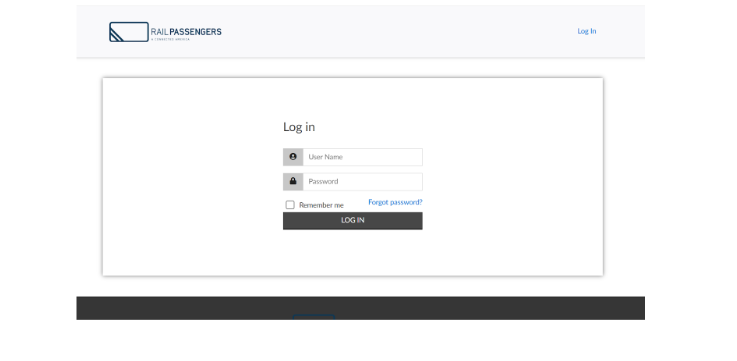
At the Log In screen, use the Username and Password associated with your CharityEngine account.
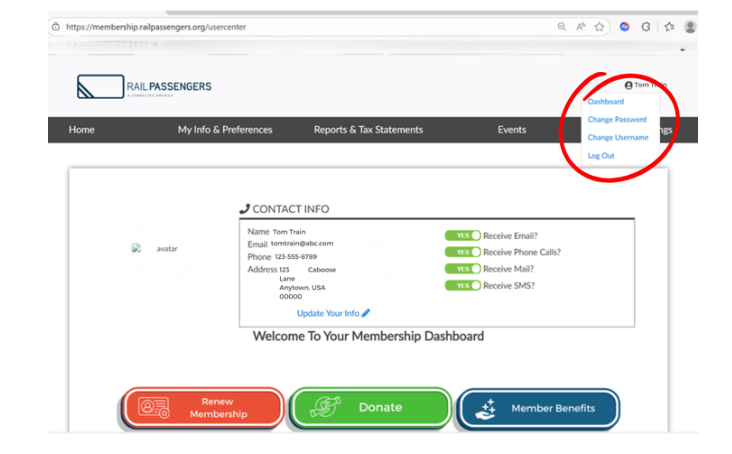
When in the User Center, you can change your Username when inside the self-service portal.
After logging into your account, your name appears in the upper right corner, Tom Train in the screenshot. Click on your name and navigation options including “Change Username” appears. Remember to save any changes you make.
Location of Membership Type and CharityEngine Membership Number
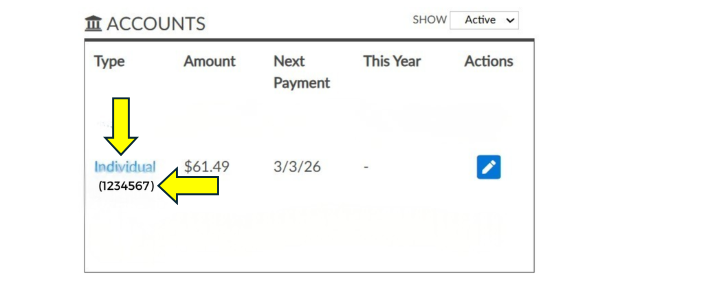
When in the User Center, you can see your membership type and membership number assigned by CharityEngine.
Your old Neon membership number will not appear in this display, but Amtrak will still honor that number when purchasing tickets.
Adding Rail Passengers Number to your Amtrak Account
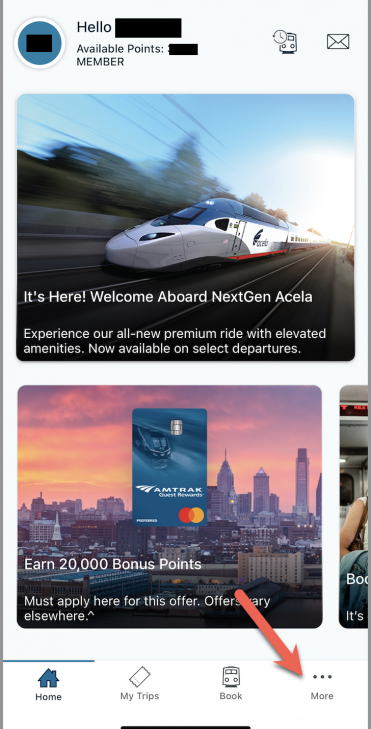
Go into your Amtrak Guest Rewards Account and click on “MORE”
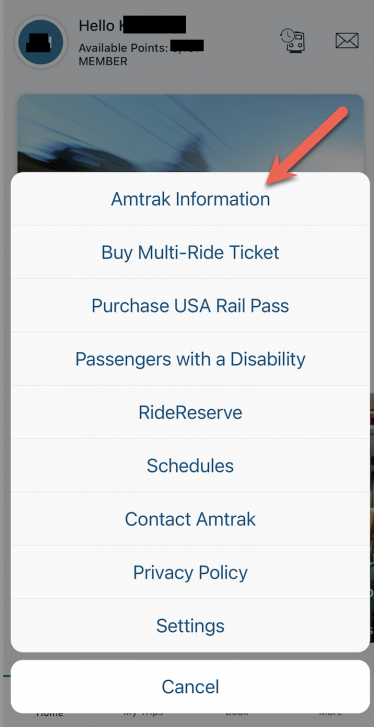
The following screen will appear. Click on Amtrak Information:
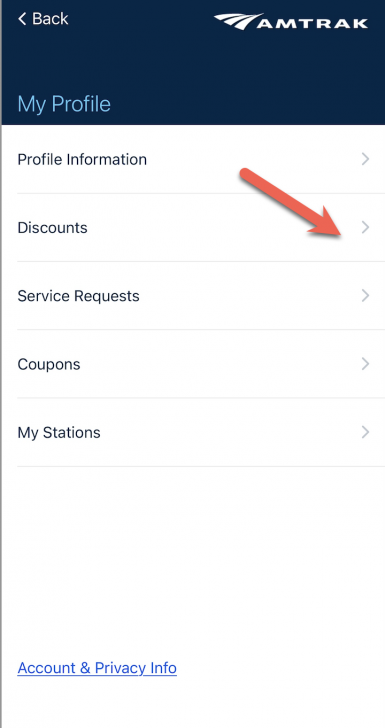
On the next screen click on “Discounts”:
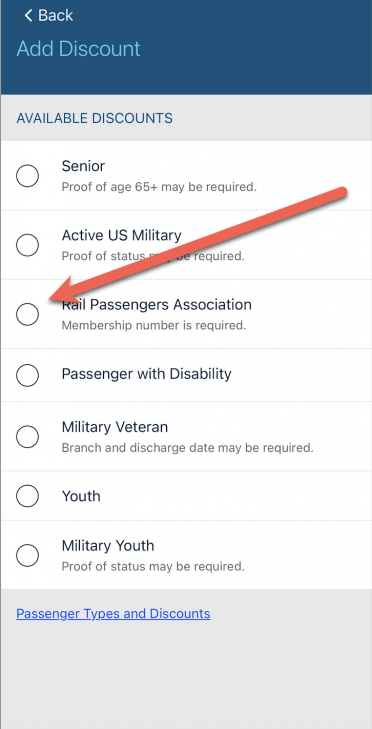
On the next screen, there will be a list of available discounts to add. Click on Rail Passengers Association:
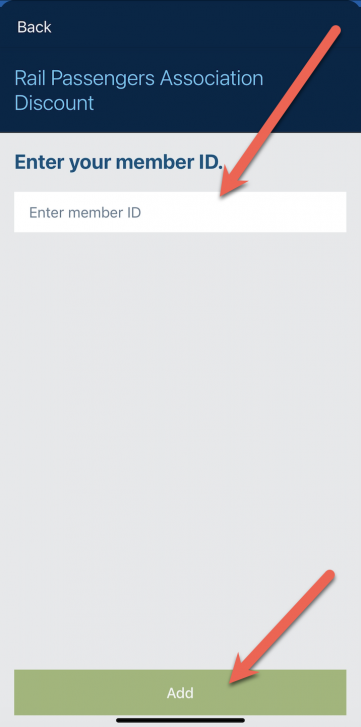
Enter the FIRST SIX digits of your Rail Passengers Association ID# and hit the ADD button:
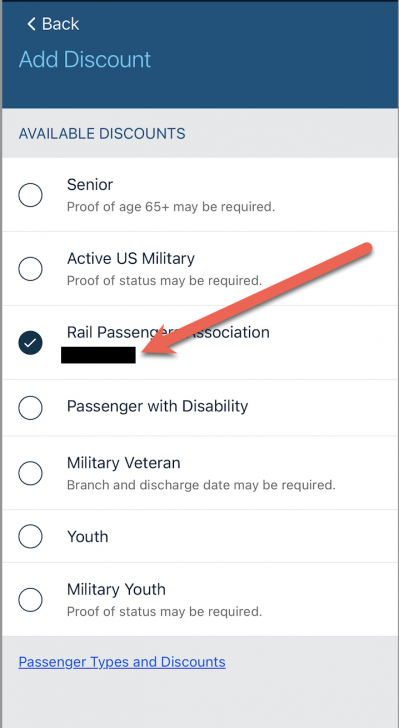
Go back to select your trip:
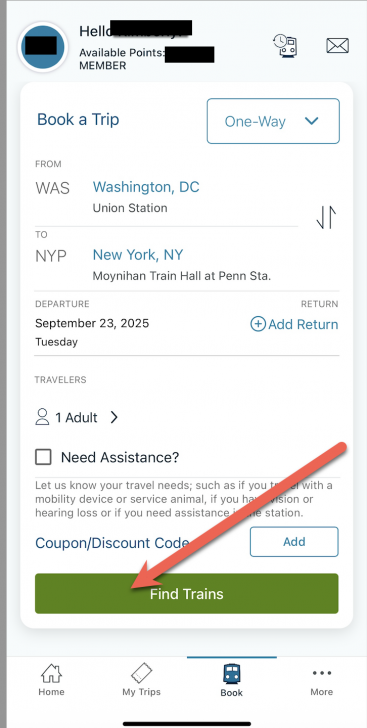
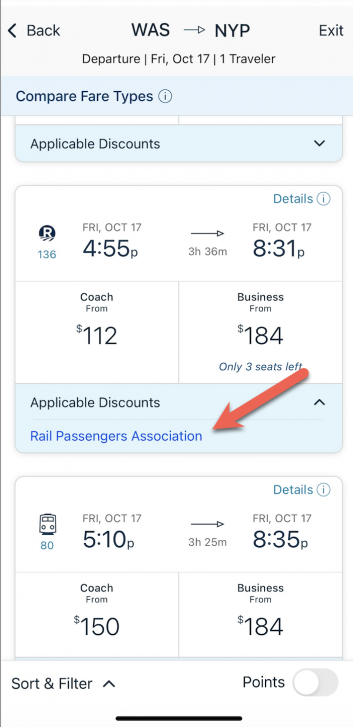
Select your trip, and you will see the Rail Passengers link come up in the “Applicable Discounts” if it is available to use (certain circumstances like weekday Acela or business class it is NOT valid for)
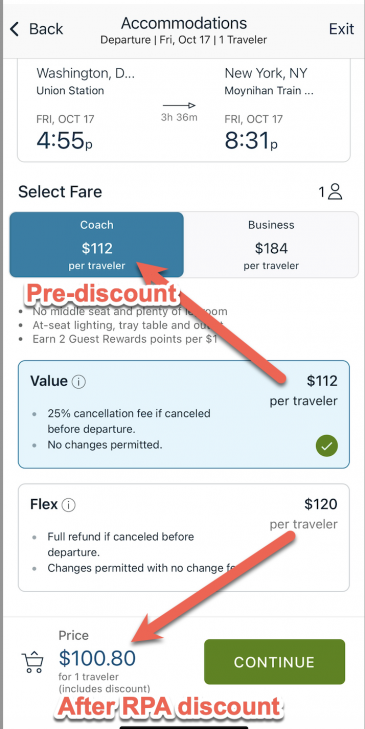
Once you have chosen your train and prior to check out the next screen will show you the actual fare with the discount:
"Thank you to Jim Mathews and the Rail Passengers Association for presenting me with this prestigious award. I am always looking at ways to work with the railroads and rail advocates to improve the passenger experience."
Congressman Dan Lipinski (IL-3)
February 14, 2020, on receiving the Association's Golden Spike Award